
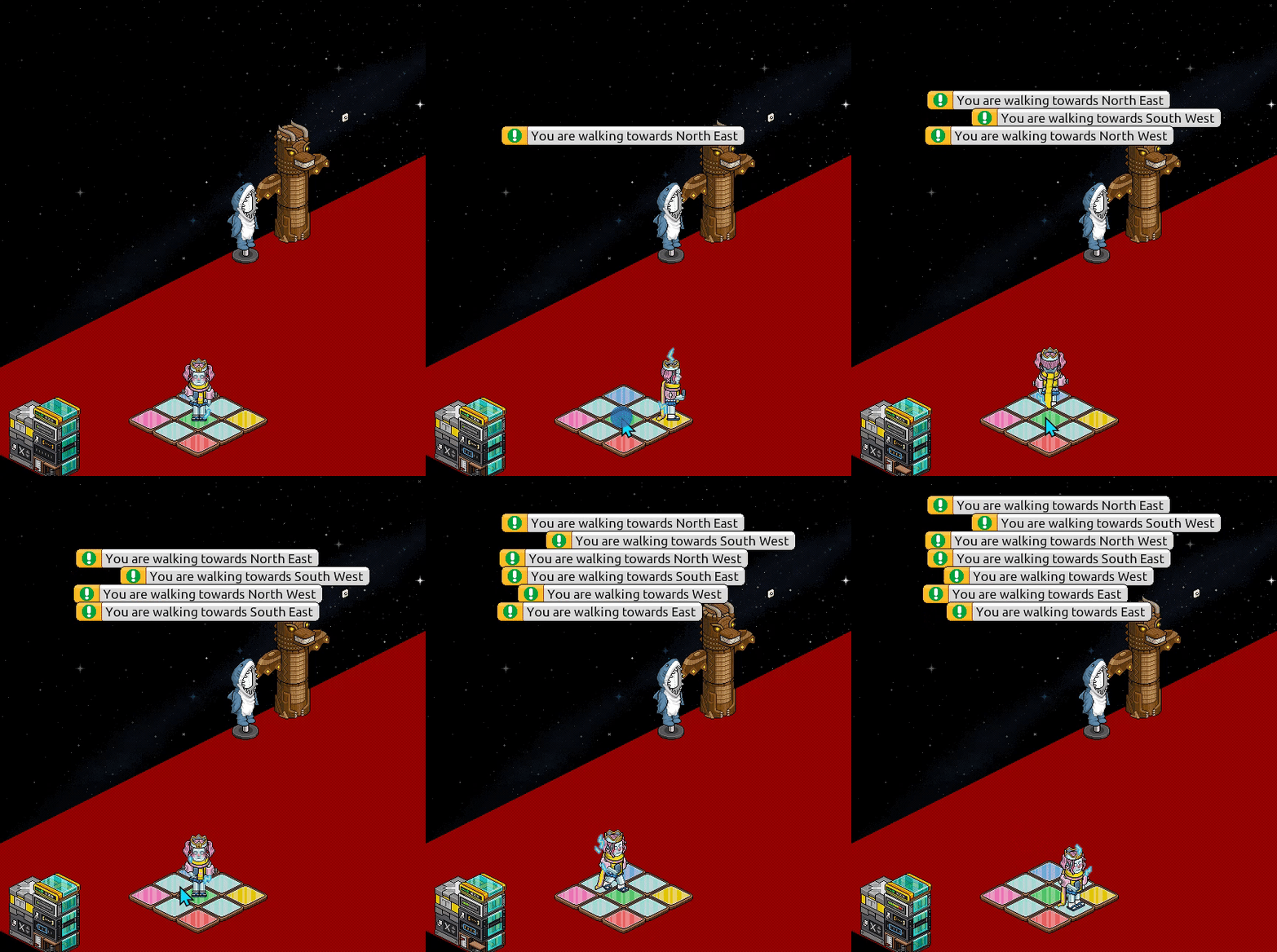
This set up will show you in which direction you are walking in. Very handy if you need that for certain wired stacks!
First stack:
1x Wired Variable: Echo
1x Variable Add-on: Text connector
Note: These wireds from the above ^ needs to be stacked on top of each other in order for them to work.
Second stack:
1x Wired Trigger: user walks on furni
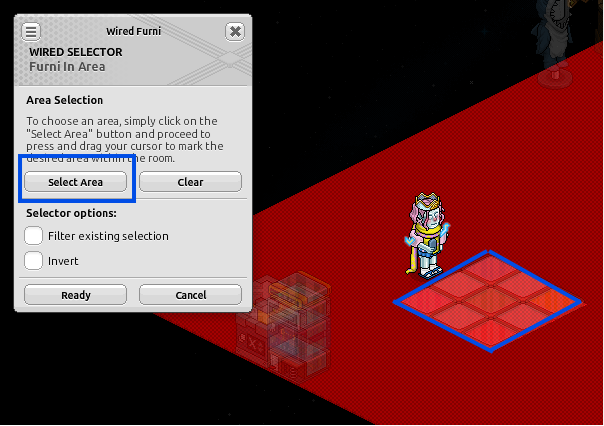
1x Wired Selector: furni in area
1x Wired Effect: show message
1x Wired Text Add-On: Variable placeholder
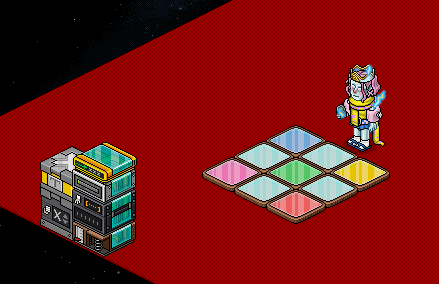
And whichever furni you want to use, in my case, it is color tiles.
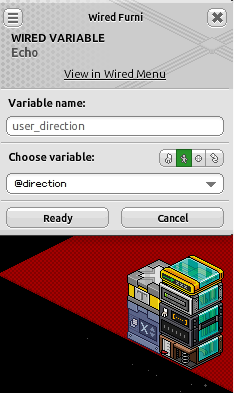
Set your Wired Variable: Echo like this. Variable name can be anything you want, user_direction is just to know what you are using it for. Then navigate to ''Choose variable'' click the second icon (green user icon), find the name with @ infront of direction.
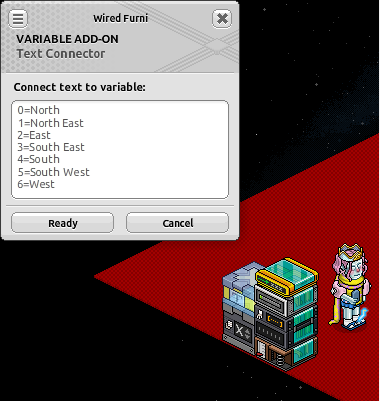
Click on your Variable Add-On: Text connector. Type this into the variable. Ensuring each number has the correct direction.
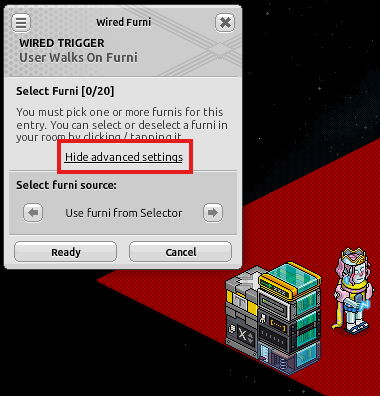
Click on your Wired Trigger: user walks on furni. Navigate to ''Show advanced settings'' and find ''Use furni from selector''.
Select the area you want people to read what direction they are at and put your desired furni into that area.
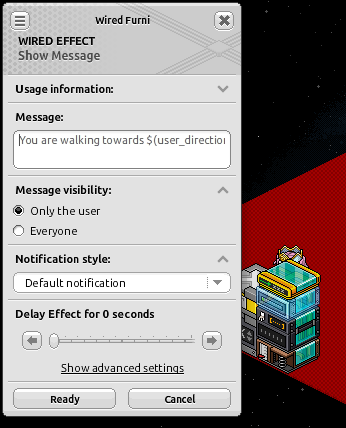
Click on your Wired Effect: show message and type whichever message you want them to see. Such as: You are walking towards $(user_direction).
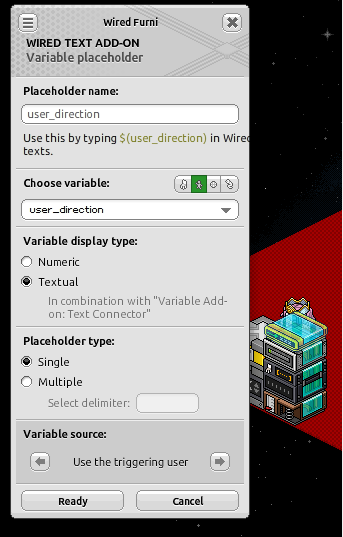
Click on your Wired Text Add-On: Variable placeholder and give it the name from the Wired Variable: Echo. Which is user_direction ~ Navigate to ''Choose variable'' and use the second option ''green user icon'' and set it to user_direction as well. Variable display type should be Textual, you can click on that when both the Wired Variable: Echo and Variable Add-On: Text connector are stacked on top of each other.
What do you need?
First stack:
1x Wired Variable: Echo
1x Variable Add-on: Text connector
Note: These wireds from the above ^ needs to be stacked on top of each other in order for them to work.
Second stack:
1x Wired Trigger: user walks on furni
1x Wired Selector: furni in area
1x Wired Effect: show message
1x Wired Text Add-On: Variable placeholder
And whichever furni you want to use, in my case, it is color tiles.
First stack - Both these 2 wireds needs to be stacked on top of each other.
Set your Wired Variable: Echo like this. Variable name can be anything you want, user_direction is just to know what you are using it for. Then navigate to ''Choose variable'' click the second icon (green user icon), find the name with @ infront of direction.
Click on your Variable Add-On: Text connector. Type this into the variable. Ensuring each number has the correct direction.
Second stack
Click on your Wired Trigger: user walks on furni. Navigate to ''Show advanced settings'' and find ''Use furni from selector''.
Select the area you want people to read what direction they are at and put your desired furni into that area.
Click on your Wired Effect: show message and type whichever message you want them to see. Such as: You are walking towards $(user_direction).
Click on your Wired Text Add-On: Variable placeholder and give it the name from the Wired Variable: Echo. Which is user_direction ~ Navigate to ''Choose variable'' and use the second option ''green user icon'' and set it to user_direction as well. Variable display type should be Textual, you can click on that when both the Wired Variable: Echo and Variable Add-On: Text connector are stacked on top of each other.
GIF Example:
 Rotating 4 months ago
 Kaf 4 months ago
 Pokemonleah 4 months ago