
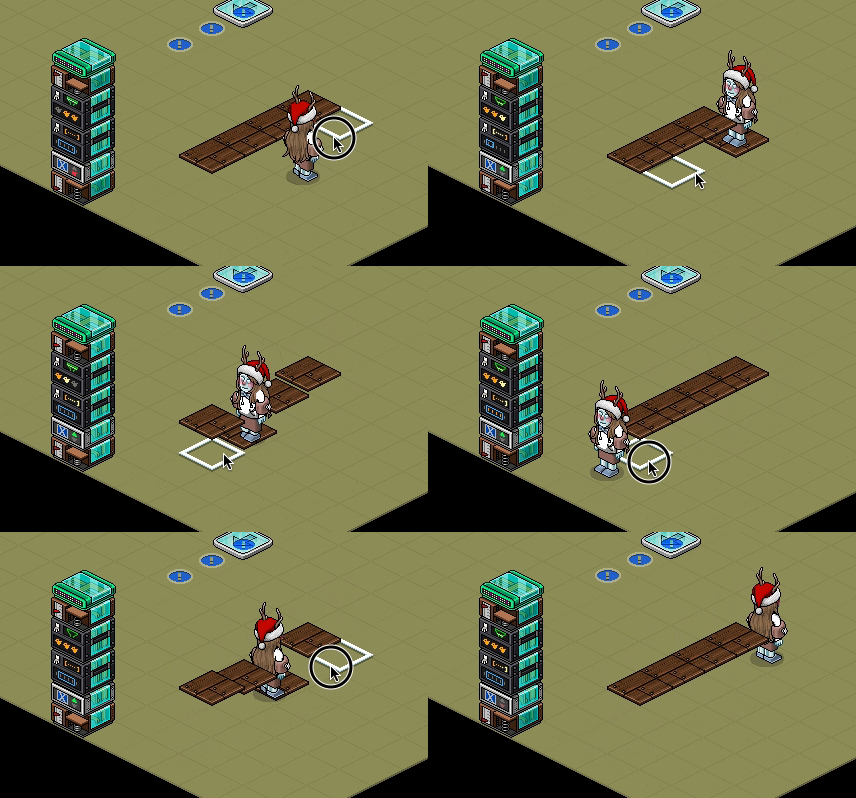
It's been a while since i have posted something wired related so i wanted to post again. This tutorial is effective if you need multiple furni's from the same type to be changed from altitude continuously.
Note: This wired article has 3 tutorials in 1!
1x Wired effect: change variable value
1x Wired selector: furni in area
1x Wired selector: furni by type
And ofcourse, any furni that you want to use to change the altitude for!
PS: ignore the random Wired Condition on top of the selectors in the next steps, i forgot to remove it :p
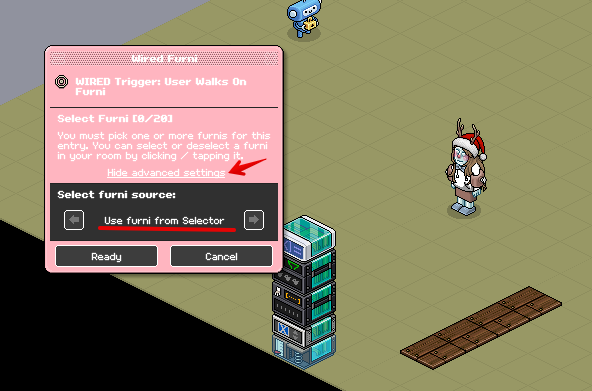
Click on your Wired trigger: user walks on furni and then click on 'show advanced settings' Use the arrows until you find 'Use furni from selector' and press Ready afterwards.
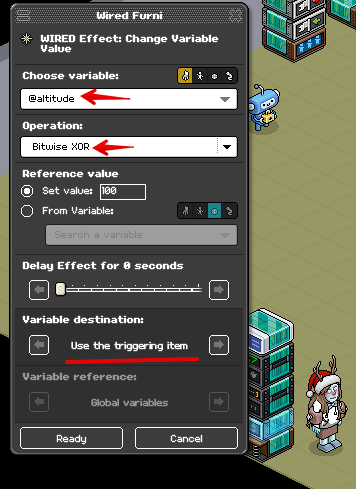
Click on your Wired effect: change variable value, make sure that the furni logo is selected and then from 'Choose variable' you need to find Altitude and from 'Operation' you need to find Bitwise XOR (You can find it when you open the whole menu of the operation list). Reference value needs to be put at 100 (in this case, it means the altitude/height). Variable destination will be 'Use the triggering item'.
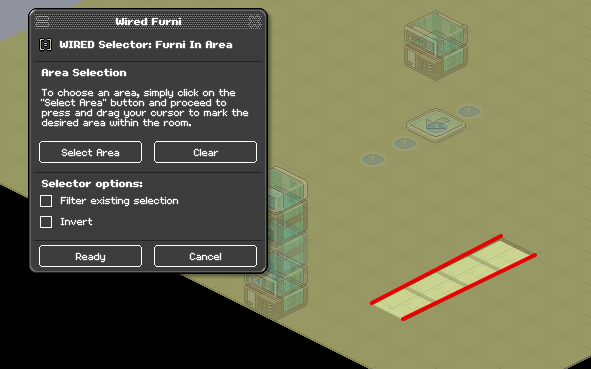
Click on your Wired selector: furni in area, select the area that has the furni that you want to use to change the altitude for. In my case, i used the area where the cabin stone and wood tiles are.
Click on your Wired selector: furni by type, tick 'Filter Existing Selection' Then select the furni in that specific area that you want to change the altitude for. Make sure that you don't select something that might ruin your build.
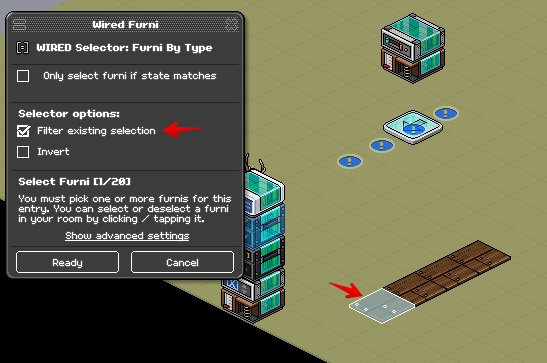
Example of how it should look like!
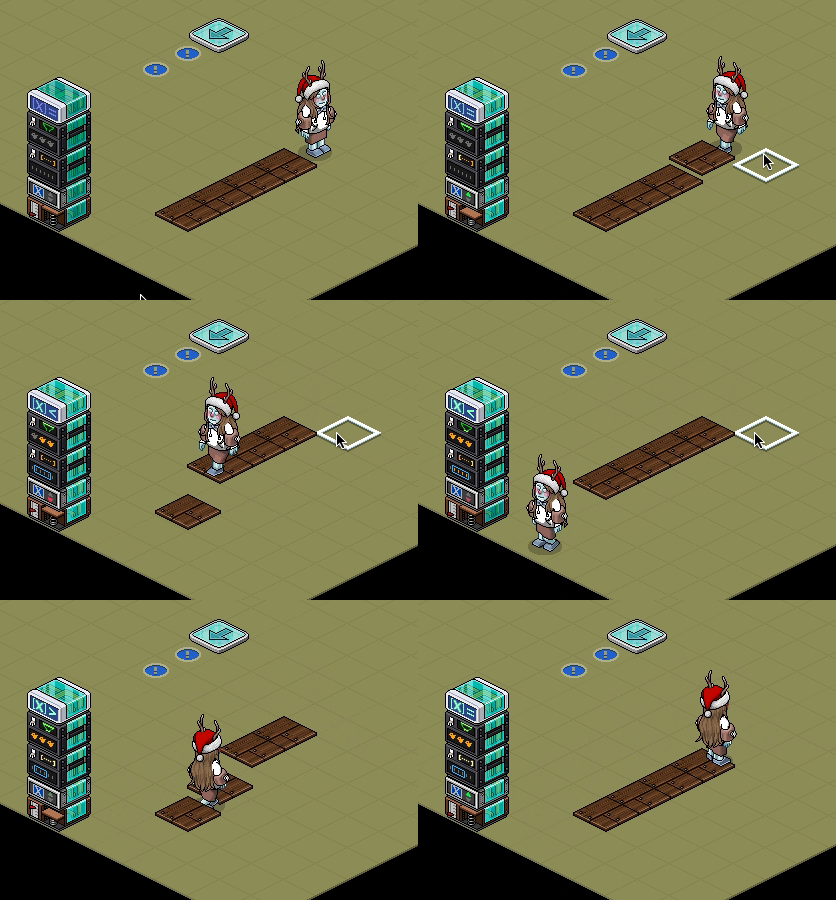
Now that i have shown you how it looks like when a user steps on the furni that the altitude changes, there is another way of making the furni go up and down when a user walks off/on by adding onto the existing stack with the same settings as before:
1x Wired trigger: avatar walks off furni
1x Wired add-on execution limit
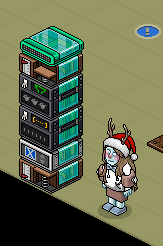
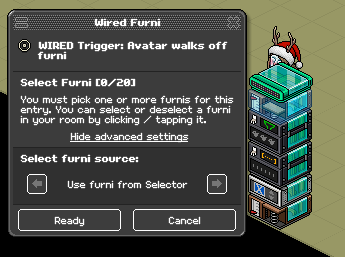
Click on your Wired trigger: avatar walks off furni and then click on 'show advanced settings' Use the arrows until you find 'Use furni from selector' and press Ready afterwards. The Wired add-on: execution limit doesn't need changing since it is automatically set to what it needs to be.
Here is how it should look like with the 2 additional wireds added!
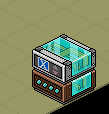
Now that you know how to use it with step on/step off wireds, and wish to only use a Wired trigger: repeat effect with the Wired effect: change variable value then that is possible as well, you will need these 2 wireds:
1x Wired trigger: repeat effect
1x Wired effect: change variable value
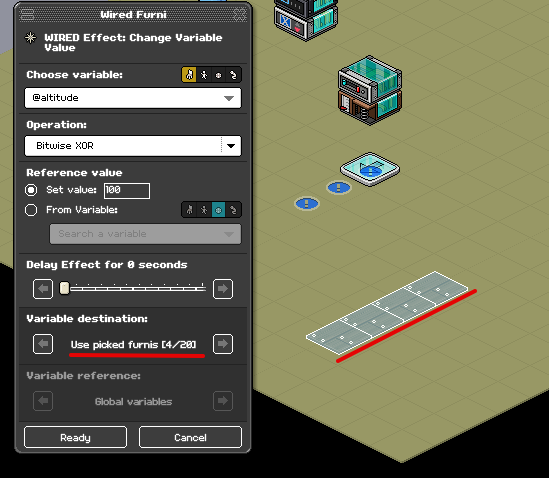
The repeat effect is automatically set to what it needs to be, so no need to change anything unless you desire to change it. For the Wired effect: change variable value, it needs to be the same setting as before but this time, you need to change it to the picked furnis you want to use.
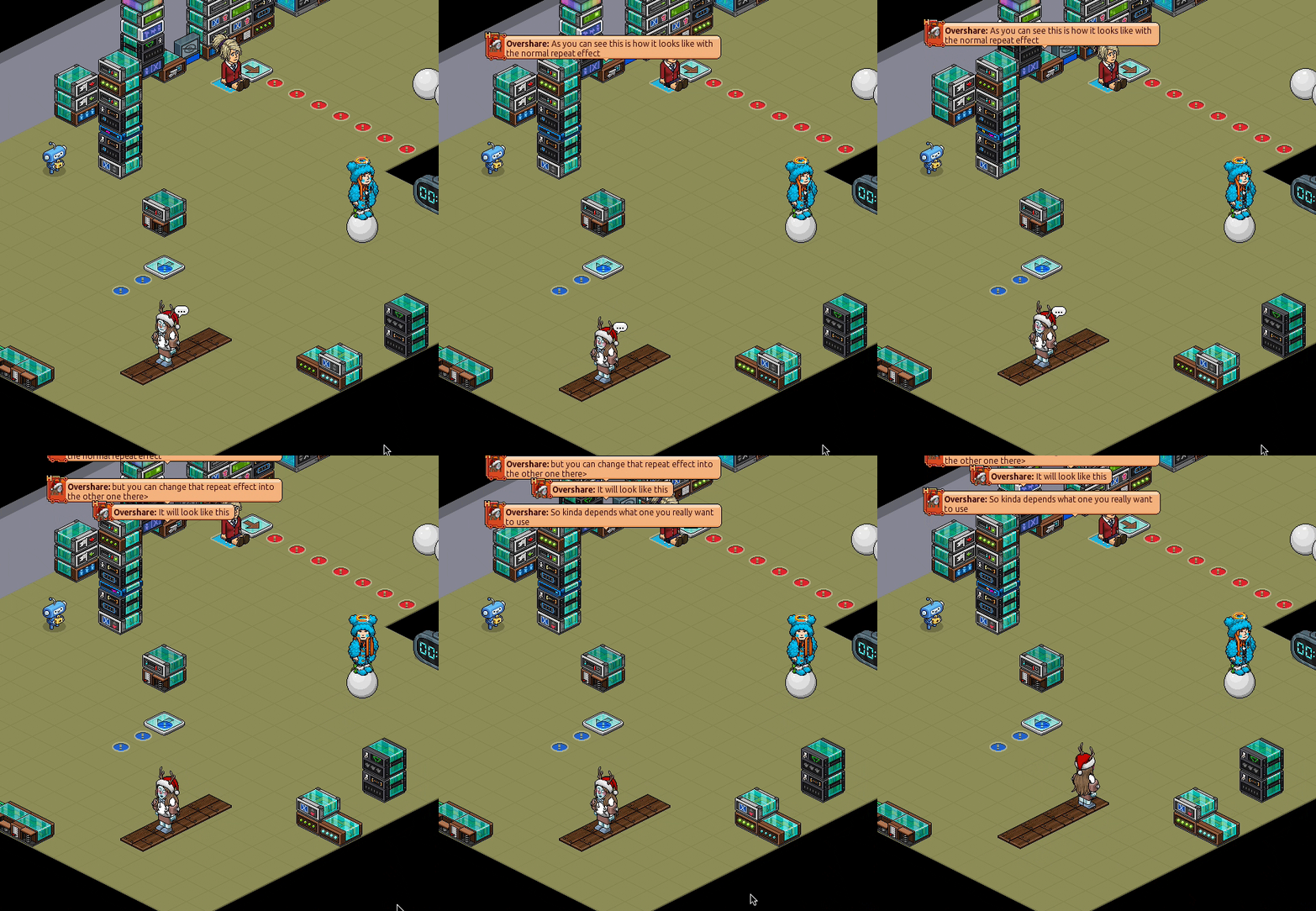
Here is how it should look like when it is with the repeat effect wireds! Plural, yes because you can change the normal repeat effect to the short repeat effect wired if you want to!
Note: Remember that if you want different type of furnis to change from altitude, you will have to add the Wired Selector: Furni in area and selecting the area. Then use the Wired Selector: Furni by type to select what furnis that need to go up and down, after that, select the 'Filter existing selection' - kind of like the first tutorial in this article where i have them used.
- I might add more tutorials to this existing guide that has to do with changing altitude with the operation Bitwise XOR, feel free to keep an eye on this article if you wish.
Note: This wired article has 3 tutorials in 1!
You need:
1x Wired trigger: user walks on furni1x Wired effect: change variable value
1x Wired selector: furni in area
1x Wired selector: furni by type
And ofcourse, any furni that you want to use to change the altitude for!
PS: ignore the random Wired Condition on top of the selectors in the next steps, i forgot to remove it :p
Step 1 / Tutorial 1
Click on your Wired trigger: user walks on furni and then click on 'show advanced settings' Use the arrows until you find 'Use furni from selector' and press Ready afterwards.
Click on your Wired effect: change variable value, make sure that the furni logo is selected and then from 'Choose variable' you need to find Altitude and from 'Operation' you need to find Bitwise XOR (You can find it when you open the whole menu of the operation list). Reference value needs to be put at 100 (in this case, it means the altitude/height). Variable destination will be 'Use the triggering item'.
Click on your Wired selector: furni in area, select the area that has the furni that you want to use to change the altitude for. In my case, i used the area where the cabin stone and wood tiles are.
Click on your Wired selector: furni by type, tick 'Filter Existing Selection' Then select the furni in that specific area that you want to change the altitude for. Make sure that you don't select something that might ruin your build.
GIF Example of Tutorial 1:
Example of how it should look like!
Tutorial 2
Now that i have shown you how it looks like when a user steps on the furni that the altitude changes, there is another way of making the furni go up and down when a user walks off/on by adding onto the existing stack with the same settings as before:
1x Wired trigger: avatar walks off furni
1x Wired add-on execution limit
Click on your Wired trigger: avatar walks off furni and then click on 'show advanced settings' Use the arrows until you find 'Use furni from selector' and press Ready afterwards. The Wired add-on: execution limit doesn't need changing since it is automatically set to what it needs to be.
GIF Example of Tutorial 2:
Here is how it should look like with the 2 additional wireds added!
Tutorial 3
Now that you know how to use it with step on/step off wireds, and wish to only use a Wired trigger: repeat effect with the Wired effect: change variable value then that is possible as well, you will need these 2 wireds:
1x Wired trigger: repeat effect
1x Wired effect: change variable value
The repeat effect is automatically set to what it needs to be, so no need to change anything unless you desire to change it. For the Wired effect: change variable value, it needs to be the same setting as before but this time, you need to change it to the picked furnis you want to use.
GIF Example of Tutorial 3
Here is how it should look like when it is with the repeat effect wireds! Plural, yes because you can change the normal repeat effect to the short repeat effect wired if you want to!
Note: Remember that if you want different type of furnis to change from altitude, you will have to add the Wired Selector: Furni in area and selecting the area. Then use the Wired Selector: Furni by type to select what furnis that need to go up and down, after that, select the 'Filter existing selection' - kind of like the first tutorial in this article where i have them used.
- I might add more tutorials to this existing guide that has to do with changing altitude with the operation Bitwise XOR, feel free to keep an eye on this article if you wish.
 Dani 10 months ago