
In this simple tutorial i will show you how to mute bots with just using 2 wireds but i will also add additional ways to mute bots in a different way! With this wired guide there will be 3 tutorials.
1x Wired trigger: users says keyword
1x Wired condition: triggerer matches

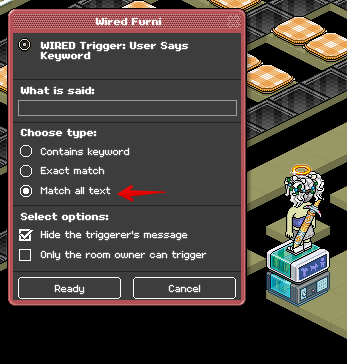
Make sure that the Wired trigger: user says keyword is set to 'Match all text' but do not write anything in it.
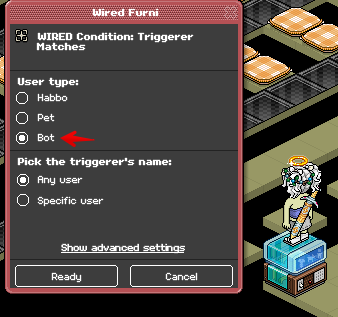
Now make sure that the Wired condition: triggerer matches is set to Bot only.
Example 1 GIF: Now you can place a bot in your room and it will work.

Note: In this example, you will need to set the Wired trigger: user says keyword the same as shown in example 1. By ensuring that you click the 'Match all text' without putting anything into the box.
1x Wired trigger: user says keyword
1x Wired condition: triggerer matches
1x Wired selector: users by name

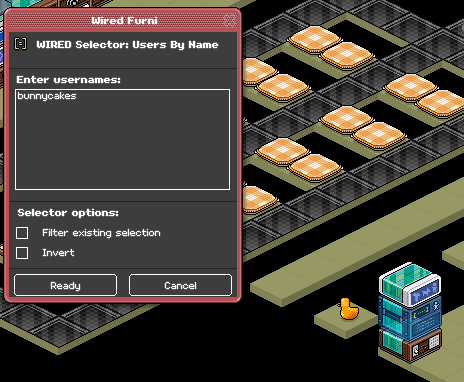
In your Wired selector: users by name, you set the name of your bot into it that you want to mute.
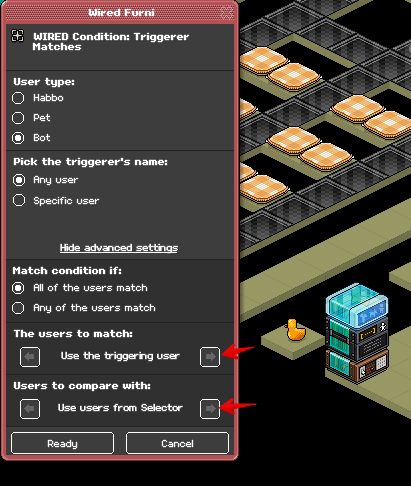
In your Wired condition: triggerer matches, you will put the user type selected on 'Bot' and then click on 'show advanced settings' to receive the settings that are needed for this to work. Set the 'The users to match' to 'Use the triggering user' and set the 'Users to compare with' to 'Use users from selector'.
Example 2 GIF: Now you can place your bot in your room and it will work.

Note: In this example, you will need to set the Wired trigger: user says keyword the same as shown in example 1. By ensuring that you click the 'Match all text' without putting anything into the box. For the Wired condition: triggerer matches, you will need to do the same settings as shown in step 2.
1x Wired trigger: user says keyword
1x Wired condition: triggerer matches
1x Wired selector: users in area
1x Wired selector: users by type

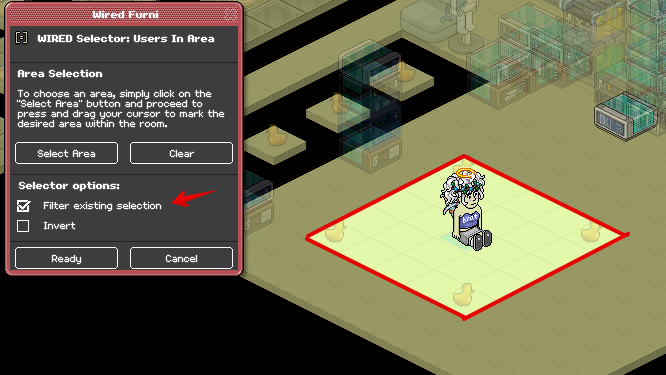
Click on your Wired selector: users in area and select the field that you want the bot to be muted in, make sure that you filter it after as shown below that the Filter existing selection is ticked.
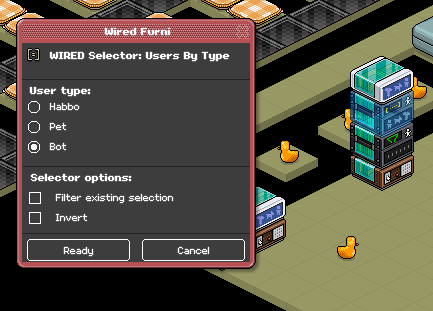
Click on your Wired selector: users by type and set it to 'Bot.
Example GIF 3: Put 1 bot in the field that you want to mute and afterwards put another bot outside of that field that you do NOT want to be muted.

Example 1 what you will need:
1x Wired trigger: users says keyword
1x Wired condition: triggerer matches
Make sure that the Wired trigger: user says keyword is set to 'Match all text' but do not write anything in it.
Now make sure that the Wired condition: triggerer matches is set to Bot only.
Example 1 GIF: Now you can place a bot in your room and it will work.
Example 2 what you will need:
Note: In this example, you will need to set the Wired trigger: user says keyword the same as shown in example 1. By ensuring that you click the 'Match all text' without putting anything into the box.
1x Wired trigger: user says keyword
1x Wired condition: triggerer matches
1x Wired selector: users by name
In your Wired selector: users by name, you set the name of your bot into it that you want to mute.
In your Wired condition: triggerer matches, you will put the user type selected on 'Bot' and then click on 'show advanced settings' to receive the settings that are needed for this to work. Set the 'The users to match' to 'Use the triggering user' and set the 'Users to compare with' to 'Use users from selector'.
Example 2 GIF: Now you can place your bot in your room and it will work.
Example 3 of what you will need:
Note: In this example, you will need to set the Wired trigger: user says keyword the same as shown in example 1. By ensuring that you click the 'Match all text' without putting anything into the box. For the Wired condition: triggerer matches, you will need to do the same settings as shown in step 2.
1x Wired trigger: user says keyword
1x Wired condition: triggerer matches
1x Wired selector: users in area
1x Wired selector: users by type
Click on your Wired selector: users in area and select the field that you want the bot to be muted in, make sure that you filter it after as shown below that the Filter existing selection is ticked.
Click on your Wired selector: users by type and set it to 'Bot.
Example GIF 3: Put 1 bot in the field that you want to mute and afterwards put another bot outside of that field that you do NOT want to be muted.
 Astronautas 1 year ago
 Dani 1 year ago
 _spirit 1 year ago