
This tutorial is helpful if you are someone that always needs to use a lot of show message wired and the best is that you don't have to use show message wired anymore! With this set up, you can use the Text Connector to make your habbo life easier.
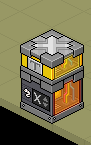
First stack:
1: Wired Variable: Context Variable
2: Variable add-on: Text Connector
Second stack:
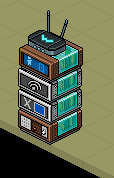
1: Wired trigger: user says keyword > optionally: you can put Wired trigger: user enters room with this stack too!
2: Wired effect: give variable
3: Wired effect: send signal
4: Small wired antenna
5: Wired Add-on: execution limit (forgot to add to the screenshot)
Third stack:
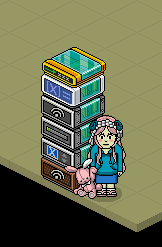
1: Wired trigger: receive signal
2: Wired effect: change variable value
3: Wired effect: show message
4: Wired effect: send signal
5: Wired condition: variable value
6: Wired Text Add-on: variable placeholder
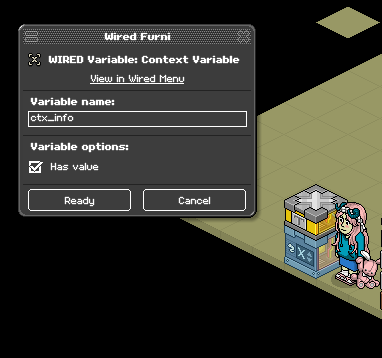
Click on your Wired Variable: Context Variable, you will need to give it a Variable Name and it can be anything you want. In my example i have named it: ctx_info - Make sure that 'Has Value' is ticked! If it looks ok, press ready.
Note: The context variable and Text Connector must be on top of EACH OTHER in order for it to work.
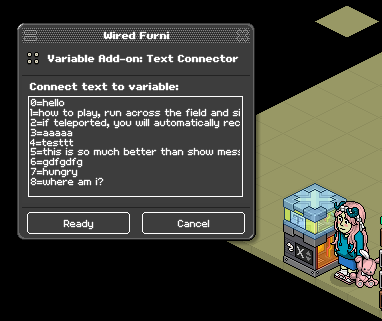
Click on your Wired Add-on: Text Connector and start by writing your sentences that you want to be output when someone says the keyword to activate the messages. After each number you need to put a =
For example:
0=aaaa
1=gdfgdf
If you have input the sentences you want, press ready.
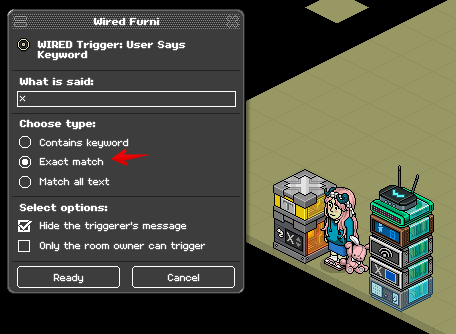
Click on your Wired trigger: user says keyword and input the word that you want people to say to activate the messages to be seen, in my example i used 'x' but in your case, you can change that to 'htp' or 'info' and make sure that the 'Choose type' within this wired box is set to Exact Match. Press ready, when done.
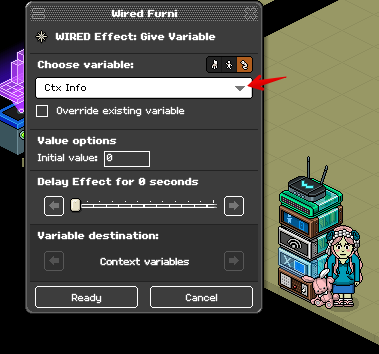
Click on your Wired : give variable and click on the context variable icon and then use the dropdown menu to look for the variable you have given your Wired variable: context variable and then select that one, press ready after.
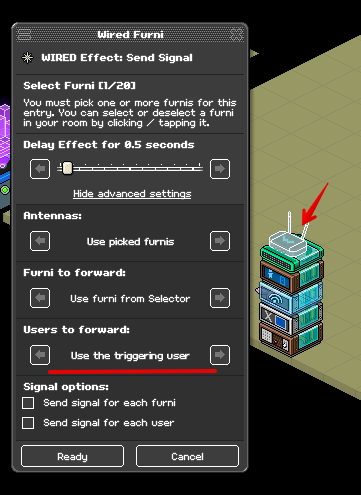
Click on your wired signal and put a 0.5 sec delay, then click on 'show advanced settings' and change the 'users to forward' to use the triggering user and select your wired antenna then press ready. After all of this, you can put the Wired trigger: user enters room and Wired Add-on: execution limit on top of this whole stack.
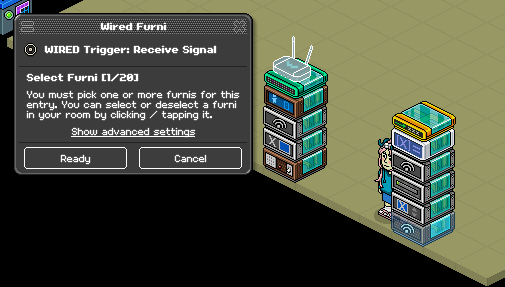
Click on your Wired trigger: receive signal and select the antenna, press ready after.
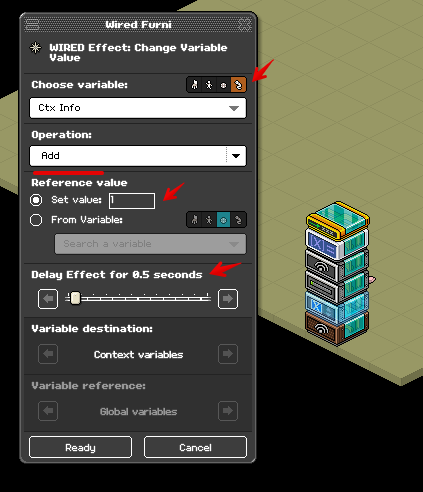
For the Wired effect: change variable value, use the drop menu to select the context variable 'ctx info' in my case. Then for the part that says 'operation' you must change 'assign to add' and underneath that, there will be 'reference value and set value' that you have to change to 1 and make sure to have a 0.5 sec delay with this wired box, press ready after.
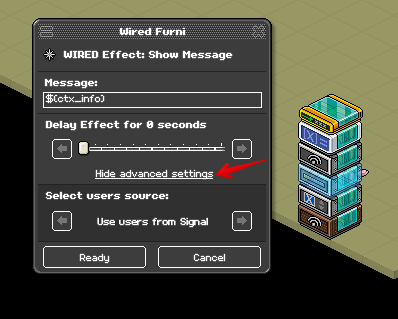
Click on the Wired effect: show message and put $(ctx_info) in the 'message' part and then click on 'show advanced settings' keep clicking on the mini arrow until you find 'Use users from signal' and then press ready.
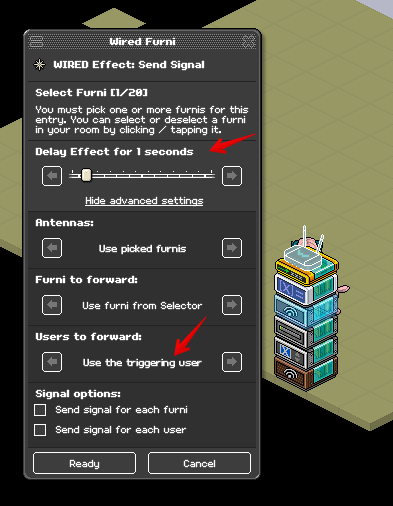
For the Wired effect: send signal, put a delay of 1 seconds. Then click on 'show advanced settings' to open the full menu. For the 'users to forward' keep clicking the mini arrow until you find 'use the triggering user' and select the antenna then press ready after.
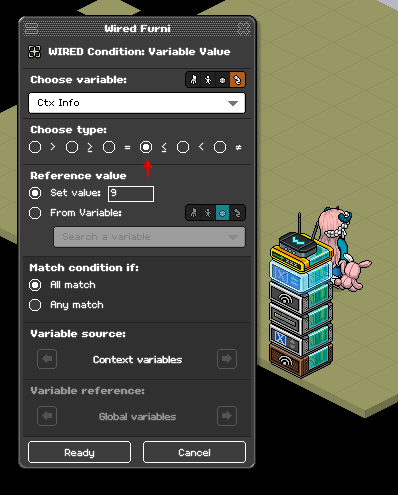
Click on the Wired condition: variable value and click on the Context icon, then click the Context variable you are using. For choose type make sure it's this symbol you selected ≤ and for the Reference value - Set value: you put the number 9 (this means that you are using 9 sentences which is in my case) if you are using less sentences than me, just change number 9 to something lower. So for example: 3 sentences, that 9 will be a 3 instead, etc. This goes for using more sentences too. Press ready after.
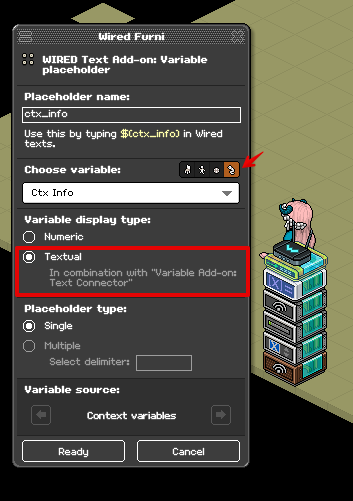
As last, the placeholder name needs to be: ctx_info or however you want it to be. From choose variable, select the Context icon and search for your variable. Click on Textual for the 'Variable display type' Press ready after.
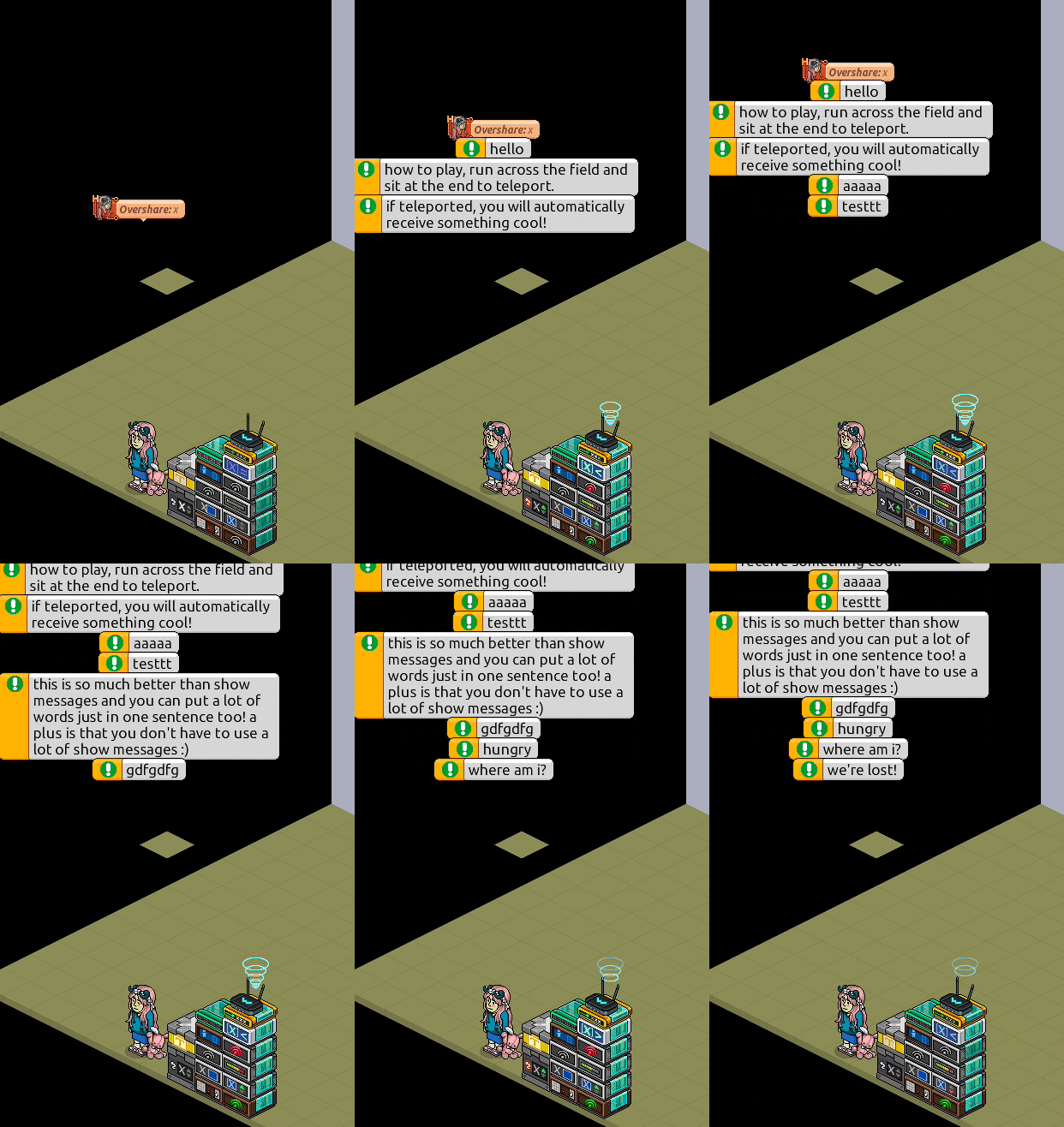
If you did everything right, it should go like this:
What do you need? - There is a GIF at the end of the set up in action
First stack:
1: Wired Variable: Context Variable
2: Variable add-on: Text Connector
Second stack:
1: Wired trigger: user says keyword > optionally: you can put Wired trigger: user enters room with this stack too!
2: Wired effect: give variable
3: Wired effect: send signal
4: Small wired antenna
5: Wired Add-on: execution limit (forgot to add to the screenshot)
Third stack:
1: Wired trigger: receive signal
2: Wired effect: change variable value
3: Wired effect: show message
4: Wired effect: send signal
5: Wired condition: variable value
6: Wired Text Add-on: variable placeholder
First stack
Click on your Wired Variable: Context Variable, you will need to give it a Variable Name and it can be anything you want. In my example i have named it: ctx_info - Make sure that 'Has Value' is ticked! If it looks ok, press ready.
Note: The context variable and Text Connector must be on top of EACH OTHER in order for it to work.
Click on your Wired Add-on: Text Connector and start by writing your sentences that you want to be output when someone says the keyword to activate the messages. After each number you need to put a =
For example:
0=aaaa
1=gdfgdf
If you have input the sentences you want, press ready.
Second stack
Click on your Wired trigger: user says keyword and input the word that you want people to say to activate the messages to be seen, in my example i used 'x' but in your case, you can change that to 'htp' or 'info' and make sure that the 'Choose type' within this wired box is set to Exact Match. Press ready, when done.
Click on your Wired : give variable and click on the context variable icon and then use the dropdown menu to look for the variable you have given your Wired variable: context variable and then select that one, press ready after.
Click on your wired signal and put a 0.5 sec delay, then click on 'show advanced settings' and change the 'users to forward' to use the triggering user and select your wired antenna then press ready. After all of this, you can put the Wired trigger: user enters room and Wired Add-on: execution limit on top of this whole stack.
Third stack
Click on your Wired trigger: receive signal and select the antenna, press ready after.
For the Wired effect: change variable value, use the drop menu to select the context variable 'ctx info' in my case. Then for the part that says 'operation' you must change 'assign to add' and underneath that, there will be 'reference value and set value' that you have to change to 1 and make sure to have a 0.5 sec delay with this wired box, press ready after.
Click on the Wired effect: show message and put $(ctx_info) in the 'message' part and then click on 'show advanced settings' keep clicking on the mini arrow until you find 'Use users from signal' and then press ready.
For the Wired effect: send signal, put a delay of 1 seconds. Then click on 'show advanced settings' to open the full menu. For the 'users to forward' keep clicking the mini arrow until you find 'use the triggering user' and select the antenna then press ready after.
Click on the Wired condition: variable value and click on the Context icon, then click the Context variable you are using. For choose type make sure it's this symbol you selected ≤ and for the Reference value - Set value: you put the number 9 (this means that you are using 9 sentences which is in my case) if you are using less sentences than me, just change number 9 to something lower. So for example: 3 sentences, that 9 will be a 3 instead, etc. This goes for using more sentences too. Press ready after.
As last, the placeholder name needs to be: ctx_info or however you want it to be. From choose variable, select the Context icon and search for your variable. Click on Textual for the 'Variable display type' Press ready after.
GIF of the set up
If you did everything right, it should go like this: